Fixing Missing Topics and Agent Components in Microsoft 365 Copilot Studio Deployments
Fixing Missing Topics and Agent Components in Microsoft 365 Copilot Studio Deployments
Date: 2026-03-17
Struggling with missing agent topics after Copilot Studio solution deployments? Learn a simple, time-saving fix to keep your Microsoft 365 Copilot agents fully in sync across environments.
Tags: ["Microsoft 365", "Copilot Studio", "Azure DevOps", "Solution Deployment", "Agent Management"]
Microsoft 365 Copilot Studio empowers organizations to build intelligent AI agents that boost productivity across business teams. But as your agents evolve through development cycles—adding new topics and AI models—deploying those changes seamlessly across environments can be surprisingly tricky. Missing components after deploying solutions frustrate developers and users alike.
This post dives into a practical, battle-tested technique shared by Simon Doy to quickly recover missing topics and agent components when deploying Copilot Studio solutions. If you’ve ever deployed a new agent version only to see some of your new work vanish in test or production, this solution is for you.
We’ll cover why these missing components happen, the root causes behind the issue, and the step-by-step fix for ensuring your agents stay complete and functional with each deployment pipeline run.
Architecture Overview
┌─────────────────────────────────────────────┐
│  Development Environment                    │
├─────────────────────────────────────────────┤
│  • Copilot Studio Agent Authoring           │
│  • Adding Topics & AI Models                 │
│  • Solution Packaging & Export               │
└─────────────────────────────────────────────┘
               ↓
┌─────────────────────────────────────────────┐
│  Azure DevOps Pipeline                       │
├─────────────────────────────────────────────┤
│  • Export Solution from Dev                  │
│  • Import Solution to Test/Production        │
│  • Publish Agent and Components              │
└─────────────────────────────────────────────┘
               ↓
┌─────────────────────────────────────────────┐
│  Microsoft 365 Environment                   │
├─────────────────────────────────────────────┤
│  • Deployed Copilot Agents                   │
│  • Topics, AI Models, and Agent Components   │
│  • User Access and Interaction               │
└─────────────────────────────────────────────┘
The flow centers on the solution export-import process via automation pipelines, but as highlighted, new agent topics and AI components can get lost in this transfer.
Image Source: Simon Doy’s Microsoft 365 and Azure Dev Blog
Key Technical Observations
-
Copilot Studio’s Solution Awareness Is Partial — While Solutions are the recommended deployment artifact, Copilot Studio sometimes does not automatically include all new agent components like topics and AI models when adding to solutions.
-
Agent Components Can Be Detached From Solutions — Upon updating or adding topics to an agent, these elements may exist in the environment but not link correctly inside the managed solution used for deployment.
-
Solution Re-Adding Forces Component Resync — Removing and re-adding the agent component to your solution rebinds the agent and its associated topics, forcing those missing dependencies to be included in the exported package.
-
Automated Pipelines Can Mask Missing Dependencies — Relying solely on automated pipelines without verifying solution contents can lead to silent failures where deployments do not include new elements, causing confusion.
-
Incremental Agent Versioning Alone Isn't Enough — Simply incrementing agent versions and republishing doesn’t guarantee all new elements propagate properly without addressing solution component mappings explicitly.
-
Non-Destructive Solution Manipulation — Removing an agent from a solution without deleting it from the environment preserves existing deployed resources while enabling the solution to refresh its internal component list.
How It Works
1. Building and Updating Your Agent in Development
When creating a Copilot Studio agent, you start by adding AI topics and models tailored to business needs. You package the agent into a solution for lifecycle management. Initially, all components are present and properly linked in your development environment.
# Example: Export the solution from Dev environment
Export-CopilotSolution -SolutionName "FinanceAgent" -Environment "Dev"
2. Deploying via Azure DevOps Pipeline
Your pipeline automates exporting solutions from development and importing them into test and production. This works well for existing agents, but new topics added might not automatically be included in the exported solution, causing discrepancies downstream.
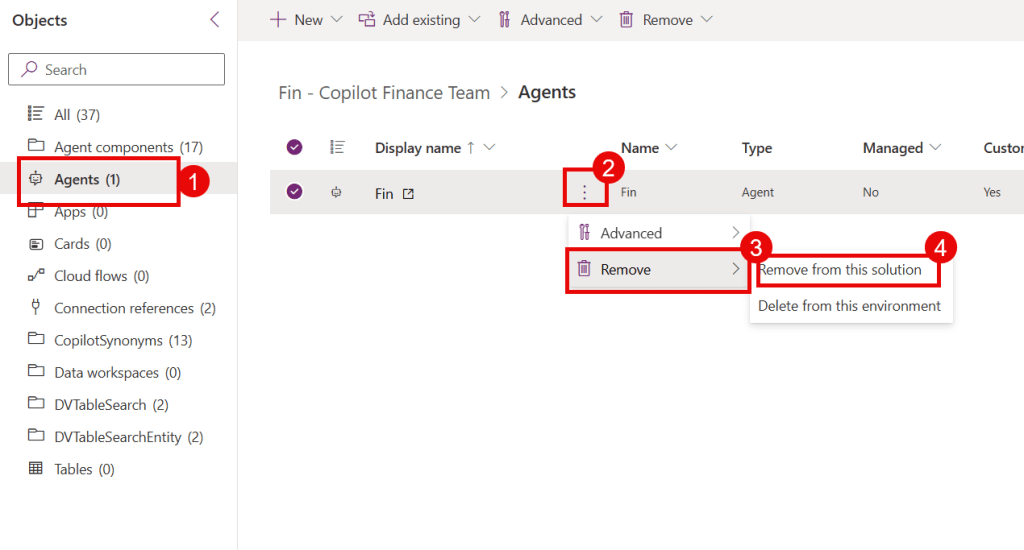
(Image source: Simon Doy’s blog - pipeline conceptual)
3. Encountering Missing Topics in Test Environment
After deploying an agent update, users report missing functionality—new month-end topics don’t appear. Checking the solution contents shows that the new topics or AI models are absent from the solution package, despite being present in Dev environment.
4. The Solution: Remove and Re-Add the Agent Component
The critical fix is to remove the Copilot agent component from the solution (without deleting it from the environment). This clears the solution’s cached state of the agent and its components.
Then, re-add the agent component back to the solution which forces the solution to pick up all current topics and dependencies linked to the agent.
This rebinds the solution to the newly added topics and AI components.
# Pseudo steps for manual fix
Remove-SolutionComponent -Solution "FinanceAgent" -Component "FinanceAgentAgent"
Add-SolutionComponent -Solution "FinanceAgent" -Component "FinanceAgentAgent"
Once done, when the pipeline exports and imports this solution, all new topics and components are included, restoring full agent functionality in the target environment.
5. Publish and Push to Production
With the solution corrected, continue testing and ultimately deploy to production confidently, knowing all components are included.
Quick Tips & Tricks
-
Always Verify Solution Contents Before Deployment
Use PowerShell or the solution management UI to check that all expected topics and AI models are included after updates. -
Remove and Re-Add Agent Components to Refresh Solution
If new agent topics don’t appear post-deployment, removing and re-adding the agent to the solution is a quick remedy. -
Avoid Deleting Agents from Environment
Removing the agent from a solution doesn’t delete it from your tenant—this non-destructive approach prevents data loss. -
Incorporate Solution Validation into Your Pipeline
Automate checks on solution contents or use pre-deployment scripts to detect missing dependencies early. -
Document Your Agent Version Changes Clearly
Maintain logs of added topics and AI models per release to quickly correlate issues with recent changes. -
Communicate Deployment Processes With Stakeholders
Ensure users understand agent capabilities and set reasonable expectations during incremental updates.
Conclusion
Deploying Microsoft 365 Copilot Studio agents via solutions simplifies lifecycle management but presents a surprise: Copilot Studio can omit newly added topics or AI models from solutions during deployment. This disconnect causes missing functionality in test and production even when everything appears working in development.
Knowing the fix—to remove and then re-add your agent component in the solution—gives you a fast, reliable way to resync your deployment artifacts and avoid frustrating downtime or regressions. It’s a deceptively simple trick that saves hours of troubleshooting.
As Microsoft 365 Copilot evolves and integrates deeper into enterprise workflows, mastering these nuances in agent lifecycle and deployment will become essential for delivering smooth AI experiences. The technology’s trajectory makes this knowledge invaluable now and into the future.
References
- Missing Topics And Agent Components in your Deployed Copilot Studio Solutions? Try This | Simon Doy's Blog — Original blog post with problem and fix overview
- How to: Build a Custom MCP Server with the .NET MCP SDK, host as an Azure Container and connect to Copilot Studio — Related deep dive on custom agent hosting
- My Adventures in building and understanding MCP for Microsoft 365 Copilot — Background on Microsoft 365 Copilot development
- How to solve: Copilot Studio Agents, Managed Solutions, and Knowledge Sources that cannot be changed — Troubleshooting managed solution issues with Copilot Studio
- Delving into Agent 365 - Configuring and Building My First Agent — Intro to Agent 365 concepts

Image Source: Simon Doy’s Microsoft 365 and Azure Dev Blog