Unlocking Productivity with Copilot Vision on Windows: Highlights, Multitasking, and Real-Time Guidance
Unlocking Productivity with Copilot Vision on Windows: Highlights, Multitasking, and Real-Time Guidance
Date: 2026-03-17
Copilot Vision on Windows now sees what you see, guides your actions with Highlights, and seamlessly integrates across apps to transform your workflow.
Tags: ["AI Companion", "Windows", "Copilot Vision", "Productivity", "Microsoft AI"]
Microsoft’s Copilot has taken another leap forward with the release of Copilot Vision on Windows with Highlights in the U.S. This milestone reflects a new paradigm for AI-assisted computing: an intelligent assistant that not only understands your commands but actually sees and interacts with your screen content in real time. Imagine having a second set of eyes that can help you navigate complex tasks, analyze content, and offer guidance exactly when and where you need it.
For anyone who juggles multiple applications or finds themselves stuck on a particular workflow step, Copilot Vision offers a fresh way to stay in the flow. It brings together multitasking across two apps, real-time visual understanding, and interactive walkthroughs directly within Windows 10 and 11 environments. This blog post dives into what makes this update unique, how it reshapes your interaction with Windows, and practical tips for getting the most out of the new features.
Whether you use Copilot for work, gaming, or creative projects, these innovations mark a step toward a truly context-aware and empowering AI companion. Let’s explore the key technical insights and the overall experience that makes Copilot Vision a standout in the AI assistant space.
Key Technical Observations
-
Real-Time Visual Understanding: Copilot Vision processes the user’s shared app or browser window live, enabling it to “see” what the user sees and tailor responses based on actual screen content rather than just text input.
-
Multitasking Across Two Apps: Unlike prior AI assistance constrained to a single context, this system supports sharing two apps simultaneously, allowing Copilot to connect information across different software, enriching context and improving actionable suggestions.
-
Interactive Highlights for Task Guidance: The Highlights feature lets users ask “show me how” for specific tasks; Copilot then visibly highlights UI elements within the app, effectively providing an inline tutorial without breaking the user’s flow.
-
Strict Opt-In and User Control: Sharing screen content with Copilot Vision is fully user-controlled with clear interface controls to start and stop sharing, emphasizing privacy and consent in live visual AI interactions.
-
Integration with Copilot Labs and Advanced Features: Copilot Vision is part of a continuously evolving Labs program and now supports deeper research workflows and file searching capabilities, signaling ongoing innovation and responsiveness to user feedback.
-
Focus on Windows 10 and 11: This release tailors Copilot Vision specifically to Windows, leveraging native OS integrations for smoother app sharing and richer contextual understanding not achievable on non-Windows platforms yet.
How It Works
Enabling Copilot Vision
To activate Copilot Vision on Windows, open the Copilot app and click the glasses icon in the composer interface. This launches a UI letting you select which app window or browser tab to share visually with Copilot. From there, the AI immediately begins analyzing the content on screen.
[User Action]
Open Copilot app → Click glasses icon → Select app/browser window to share → Start interaction
Contextual Analysis Across Apps
You can share two apps simultaneously, enabling Copilot to parse and understand information distributed across windows. For example, while working on a travel itinerary in one app and a packing list in another, Copilot can evaluate your needs holistically.
Its vision engine uses advanced object recognition and document analysis to interpret UI components, text, images, and interactive elements, feeding this data to the language model backend.
Highlights: Step-by-Step Guidance
If you ask Copilot “show me how” for a given task, it highlights actionable UI elements in the relevant app in real time. This means you don’t just get verbal instructions but interactive guidance that visually directs you where to click or focus.
This innovation simplifies complex workflows like photo editing (e.g., adjusting lighting), email triage, or in-app feature discovery—cutting down guesswork and repetitive searches.
Privacy and Control
At any time, you can stop sharing by pressing ‘Stop’ or ‘X’ in the composer. This opt-in model ensures that Copilot Vision respects user privacy and control, allowing users to dictate when AI assistance can see personal or sensitive content.
Quick Tips & Tricks
-
Leverage Dual-App Sharing for Richer Context — Sharing two windows lets Copilot correlate information across your workflows, leading to more insightful and relevant AI guidance.
-
Use Highlights for Learning New Apps — Don’t hesitate to ask Copilot “show me how” within unfamiliar software. The visual cues accelerate onboarding and reduce frustration.
-
Keep Copilot Updated via Copilot Labs — The feature is still evolving; joining Copilot Labs ensures you get early access to new capabilities and provide feedback that shapes future updates.
-
Pair Copilot Vision with Deep Research — Use the latest integration to search files and perform in-depth research right from the assistant, streamlining multitasking further.
-
Prioritize Privacy by Managing Sharing Sessions — Always stop sharing when not needed; Copilot Vision requires active consent for viewing your screen content to maintain strict privacy standards.
-
Try Copilot Vision on Windows 10 and 11 — This feature is optimized for Microsoft’s flagship OS versions, ensuring best performance and smooth app interoperability.
Availability
Copilot Vision on Windows with Highlights is currently available in the U.S. for Windows 10 and Windows 11 users. It will be coming to more non-European countries soon as part of ongoing expansion.
Conclusion
Copilot Vision on Windows with Highlights exemplifies the evolution of AI assistants from reactive Q&A tools to proactive, context-aware collaborators that see, analyze, and guide your every move. By enabling live multitasking across two apps and providing interactive walkthroughs, Microsoft unlocks new dimensions of productivity and user empowerment directly on your PC.
As Copilot Vision matures through Copilot Labs and broader adoption, we can anticipate deeper integrations, smarter insights, and even more personalized interactions. For Windows users seeking an AI partner that truly understands their screen and workflow, now is the perfect time to embrace this technology and transform how you work and play.
References
- Copilot Vision on Windows with Highlights is now available in the U.S. | Microsoft Copilot Blog — Official announcement and feature overview
- Copilot Labs — Program for experimental Copilot features and feedback
- Copilot on Windows — Official Windows site detailing Copilot integration
- Microsoft 365 — Ecosystem where Copilot adjuncts broader productivity tools
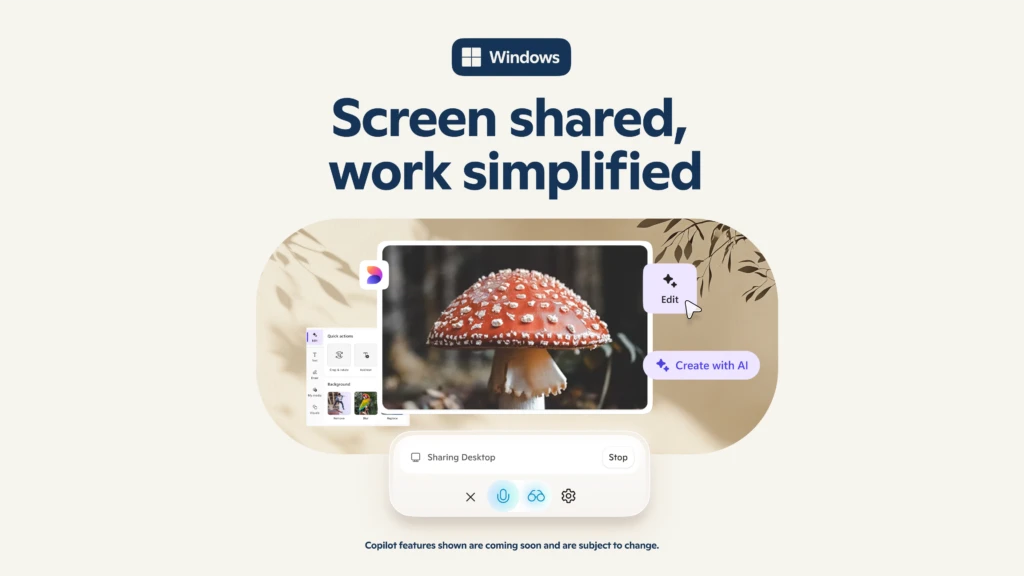
Copilot Vision analyzing multitasking environments on Windows, courtesy of Microsoft Copilot Blog

The Copilot Team behind these innovations, courtesy of Microsoft