Building a Custom MCP Server with .NET SDK, Azure Container Hosting, and Copilot Studio Integration
Building a Custom MCP Server with .NET SDK, Azure Container Hosting, and Copilot Studio Integration
Date: 2026-03-17
Discover how to build, containerize, and deploy a custom Model Context Protocol Server using the .NET MCP SDK, host it securely on Azure App Service, and connect it seamlessly to Microsoft Copilot Studio.
Tags: ["Microsoft 365", "MCP", "Azure", "Copilot", "Containers"]
Building custom AI-powered assistants and agents for Microsoft 365 environments has become an exciting frontier in enterprise development. The Model Context Protocol (MCP) enables developers to create custom tools and services that can communicate with Microsoft Copilot Studio, enhancing the capabilities of AI assistants by exposing custom domain logic and data.
This blog post dives into the detailed journey of building a custom MCP Server with the .NET MCP SDK, packaging it into a container, deploying it using Azure's container infrastructure, and connecting it to Copilot Studio agents. Along the way, we’ll highlight key architectural decisions, development tips, and deployment strategies critical to delivering a secure, scalable MCP Server solution.
Whether you’re just starting with MCP or looking to host your servers in the cloud behind modern security practices, this post covers core steps and best practices to get your MCP Server production-ready and directly consumable by Copilot Studio clients.
Architecture Overview
┌────────────────────────────────────────────┐
│Architecture                                │
├────────────────────────────────────────────┤
│• Enterprise data sources                   │
│• Foundry platform                          │
│• AI applications                           │
└────────────────────────────────────────────┘
Key Technical Observations
-
.NET SDK Container Support Simplifies Local and Cloud Deployment — Leveraging the SDK’s container support in the project file enables seamless local Docker image builds, testing, and cloud container publishing with minimal overhead.
-
MCP Server Tools Are Decorated with Attributes for Discovery — MCP Server functions require decoration with
McpServerToolTypeandMcpServerToolattributes, alongside parameter descriptions, to expose callable tools that MCP clients discover and invoke dynamically. -
Azure App Service Overcomes SSL Challenges with Containers — Running MCP Server containers on Azure Container Instances posed SSL termination and cert management difficulties, resolved by switching to Azure App Service, which natively manages SSL and container deployment lifecycle.
-
Port Configuration is Essential for Azure Container Compatibility — Default MCP Server ports (8080) cause conflicts or listener issues in Azure containers; these are mitigated by configuring environment variables (
ASPNETCORE_URLS,ASPNETCORE_HTTP_PORTS) in the project container settings to explicitly specify allowed ports. -
Authentication Gaps between MCP Protocol and Microsoft Entra ID OAuth — During testing with MCP Inspector, strict MCP protocol resource validation conflicted with Entra ID OAuth resource handling, highlighting the need for careful integration patterns or upcoming enhancements to support secure auth flows.
-
Azure DevOps Pipelines Improve Reliability over Visual Studio Publishing — Publishing containers via Visual Studio occasionally failed due to auth issues with Azure Container Registry; building CI/CD pipelines with Azure DevOps brought more consistent and automated deployment experiences.
How It Works: Step-by-Step MCP Server Lifecycle
Building the MCP Server
Starting with Visual Studio 2022, create a console application (i365.LinkedInMcpServer or similarly named). Add necessary NuGet packages such as:
Microsoft.AspNetCore.Authentication.JwtBearer (v9.0.11)
Microsoft.Extensions.Hosting (v9.0.11)
Microsoft.Identity.Web (v4.1.1)
ModelContextProtocol (v0.5.0-preview.1)
ModelContextProtocol.AspNetCore (v0.5.0-preview.1)
Develop your Program.cs using WebApplicationBuilder that builds and configures an ASP.NET Core pipeline hosting the MCP Server endpoint /mcp. MCP tools are coded in classes annotated with:
[McpServerToolType]
public class LinkedInMcpTools
{
    [McpServerTool]
    [Description("Echo tool that returns input back")]
    public string Echo(string input) => input;
}
This attribute-driven reflection allows clients to discover tools dynamically.
Local Testing & Debugging
Use the MCP Inspector tool from the Model Context Protocol NPM package to test the server locally:
npx @modelcontextprotocol/inspector dotnet run
Connect the inspector UI to http://localhost:<port>/mcp, list tools, and invoke them interactively. Note that MCP Inspector may have issues with OAuth-protected services due to protocol mismatches.

Local debugging setup using MCP Inspector
Containerizing and Publishing to Azure
Add container support in your .csproj for SDK container builds:
    true
    ithink365/ithinkexamplemcp
    [container-registry-prefix].azurecr.io
    alpine
    linux-x64;linux-arm64
    mcr.microsoft.com/dotnet/sdk:9.0
    [UserSecretId]
Configure container port environment variables to avoid Azure port conflicts:
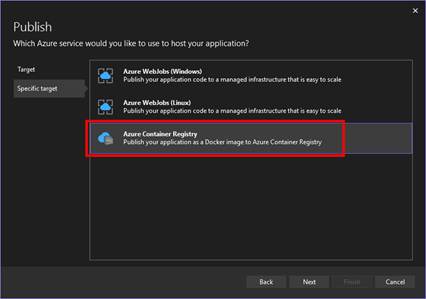
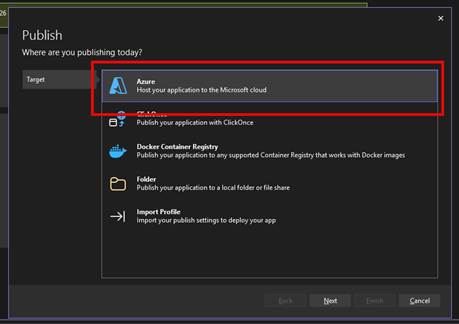
Publish through Visual Studio’s publish wizard:
- Select Azure Container Registry
- Choose subscription and registry
- Publish container image
Hosting with Azure App Service
Instead of Azure Container Instances, use Azure App Service for better SSL management and scaling:
- Create App Service linked to your resource group and subscription
- Configure deployment center to use custom container from the Azure Container Registry
- Set container port to 8080
- Deploy and run containerized MCP Server with managed HTTPS endpoint
Azure App Service configured to host MCP Server container
Updating MCP Server and Managing Deployment
You can manually sync container updates via Azure Portal’s Deployment Center. However, Visual Studio publishing can be flaky due to authentication issues. Automate deployments with Azure DevOps Pipelines:
- Build container image from source
- Push to Azure Container Registry
- Trigger deployment to Azure App Service
This CI/CD approach improves reliability and supports versioning.
Connecting MCP Server to Copilot Studio
Copilot Studio consumes MCP Servers via Power Platform custom connectors:
- Download the MCP Server OpenAPI schema example (from Microsoft docs).
- Modify the schema summary and host URL to point to your Azure App Service endpoint.
- In Power Apps Maker portal (
https://make.powerapps.com), import the schema as a new custom connector. - Configure authentication (ideally OAuth 2.0 via Microsoft Entra ID).
- Create a connection to the MCP Server.
- In your Copilot Studio Agent, add the MCP tool by selecting your custom connector.
- Enable/disable tools exposed by the server.
- Publish the Agent and test tool functionality interactively.
Power Platform custom connector interface linking MCP Server to agents
Quick Tips & Tricks
-
Enable Container Support in .csproj Early — Setting
trueallows you to build and run containers locally, reducing deployment iteration time. -
Configure Container Ports Explicitly — Azure containers often need explicit environment variable overrides for listening ports to avoid connectivity problems.
-
Prefer Azure App Service for SSL and Container Hosting — Azure App Service handles SSL termination natively and simplifies container hosting compared to container instances.
-
Use MCP Inspector for Early Debugging — Although it has some auth quirks, MCP Inspector is invaluable for verifying tool discovery and request/response flows locally.
-
Automate Deployments with Azure DevOps Pipelines — Bypass occasional Visual Studio publishing issues with more robust DevOps pipelines handling build, push, and deployment.
-
Plan for Authentication Early — MCP Servers should ideally integrate with Microsoft Entra ID OAuth 2.0 flows to secure access; this requires extra configuration in both the server and custom connector.
Conclusion
Building a custom Model Context Protocol Server with the .NET SDK and hosting it securely in Azure App Service bridges critical gaps for bespoke AI solutions in Microsoft 365. This architecture leverages modern container workflows to enable rapid development, test, and deployment cycles. Integrating MCP Servers directly into Copilot Studio via Power Platform custom connectors unlocks advanced AI assistant capabilities tailored to your domain.
While Azure Container Instances pose SSL challenges, Azure App Service offers a manageable path forward, simplifying container lifecycle and secure endpoint exposure. Future improvements around authentication support and Azure Functions hosting for MCP are promising avenues to explore next.
Experimenting with this stack empowers developers to extend Microsoft Copilot Agents beyond OOTB functionality and drive meaningful business impact through intelligent automation and contextual AI tooling.
References
- How to: Build a Custom MCP Server with the .NET MCP SDK, host as an Azure Container and connect to Copilot Studio — Simon Doy’s blog
- Model Context Protocol documentation — Microsoft Learn
- Power Platform custom connectors overview
- Azure App Service custom containers
- Using MCP Inspector with .NET MCP Server
- Azure DevOps pipeline tasks for container build and deployment

Author: Simon Doy