Delving into Agent 365: Configuring and Building Your First Microsoft AI Agent
Delving into Agent 365: Configuring and Building Your First Microsoft AI Agent
Date: 2026-03-17
Discover how to build and configure your first Agent 365 AI Agent integrated with Microsoft 365, unlocking tailored AI assistance for enterprise workflows.
Tags: ["Microsoft 365", "Agent 365", "Azure", "AI Agents"]
Microsoft’s Agent 365 marks a significant shift in enterprise AI by introducing an AI Agent-first platform deeply integrated with Microsoft 365 and Microsoft Entra ID. Announced at Ignite 2025, this emerging platform enables organizations to build secure, manageable AI Agents that become trusted collaborators within everyday productivity tools like Microsoft Teams and Word.
In this post, we explore the essential concepts, tools, and configuration steps involved in bringing your first Agent 365 Agent to life. We'll cover the intricacies of Agent Blueprints, instances, local development with DevTunnels, and deploying your Agent with Azure. If you’re a developer or IT pro curious about Microsoft’s evolving AI ecosystem, this walkthrough offers valuable hands-on insights to jumpstart your journey.
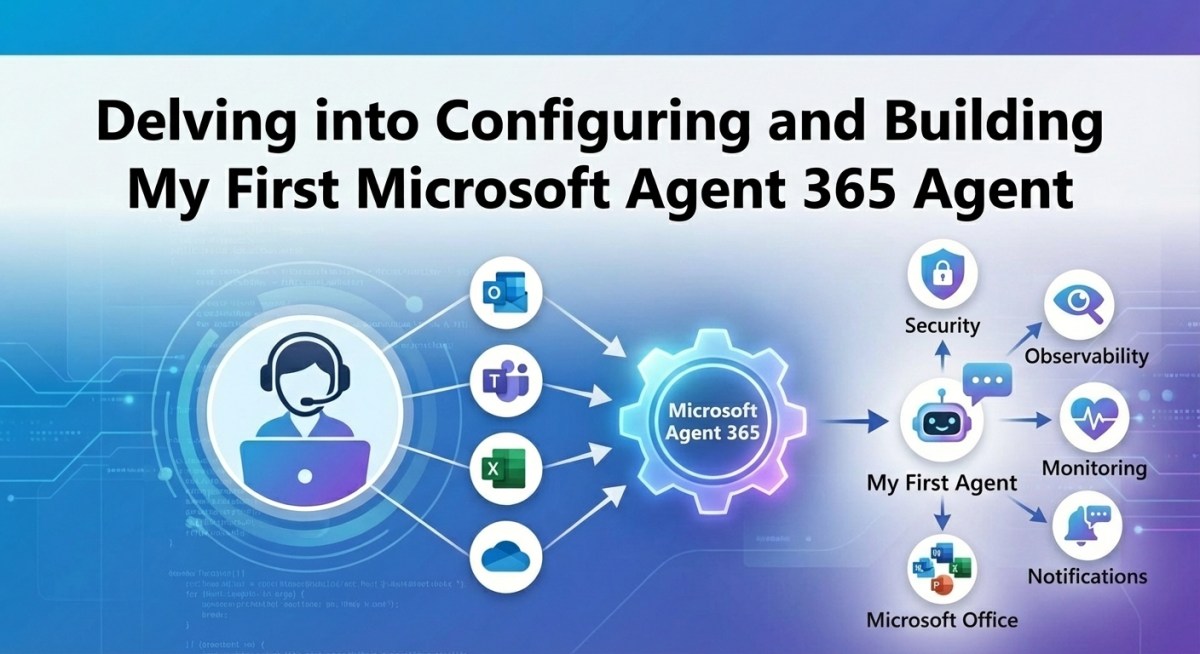
Image credit: Simon Doy’s Microsoft 365 and Azure Dev Blog
Architecture Overview
┌─────────────────────────────────────────────┐
│           Microsoft 365 Environment          │
├─────────────────────────────────────────────┤
│ • Productivity Apps (Word, Teams, Excel)    │
│ • Microsoft Entra ID for Identity Management│
│ • Microsoft 365 Admin and Agent Registry    │
└─────────────────────────────────────────────┘
                    ↓
┌─────────────────────────────────────────────┐
│               Agent 365 Platform             │
├─────────────────────────────────────────────┤
│ • Agent Identity & Security via Entra ID    │
│ • Agent Blueprints & Instances Management   │
│ • Agent Observability & Audit APIs           │
│ • Integration with Bot Framework & MCP APIs │
└─────────────────────────────────────────────┘
                    ↓
┌─────────────────────────────────────────────┐
│           Developer & Azure Tooling         │
├─────────────────────────────────────────────┤
│ • Azure CLI & Azure Subscription            │
│ • Agent 365 CLI (a365)                       │
│ • DevTunnels for Local Development Proxy    │
│ • .NET 8 Runtime & Visual Studio 2022/2026 │
└─────────────────────────────────────────────┘
This architectural flow highlights how Agent 365 sits deeply integrated in the Microsoft 365 ecosystem, leveraging Entra ID for secure identity and access control, delivering AI Agents as entities visible in productivity apps, and providing developers with tooling and local debugging capabilities.
Key Technical Observations
-
Agent Blueprint as a Declarative Definition — The Blueprint defines the agent’s identity, communication protocols (e.g., Bot Framework), permissions, and security policies but is not itself a runnable agent. This separation enforces governance and lifecycle management.
-
Distinct Agent Instances Enable Usage Control — Multiple Agent Instances created from a single Blueprint have separate identities and can be mentioned or interacted with like users in Teams, allowing granular deployment and access policies.
-
Tight Integration with Microsoft Entra ID and Microsoft Graph — Agent identity and permissions leverage Entra ID applications with delegated permissions, and configuration depends heavily on Microsoft Graph authentication, influencing how tokens and consent must be handled.
-
DevTunnels Enables Secure Local Development with Dynamic Messaging Endpoints — Running agents locally requires DevTunnels to proxy inbound messaging from Bot Framework, avoiding cumbersome public-facing endpoints or deployments during development.
-
Agent 365 CLI (a365) as Developer's Primary Tool — The CLI scaffolds projects, manages blueprints, configures permissions, and facilitates publishing. However, lifecycle management needs improvement, e.g., it currently recreates blueprints rather than detecting existing ones.
-
Azure Regional Restrictions Impact Deployment — Choosing supported Azure regions (e.g.,
swedencentraloveruksouth) is critical to avoid bot messaging endpoint errors during provisioning and must be carefully managed in configuration.
How It Works: Setting Up Your First Agent 365 Agent
Prerequisites and Tooling
To get started, ensure you have:
-
A Global Administrator account in a Microsoft 365 tenant enrolled in the Microsoft Frontier preview.
-
Access to an Azure subscription to deploy resources.
-
Installed tooling:
- Azure CLI (e.g., via
winget install --exact --id Microsoft.AzureCLI) - Agent 365 CLI
a365— preferably the pre-release version (dotnet tool install --global Microsoft.Agents.A365.DevTools.Cli --prerelease) - .NET 8 runtime, including Desktop and ASP.NET Core runtimes (download)
- DevTunnels (
winget install Microsoft.devTunnel)
Creating a Custom Microsoft Entra ID Application
The custom Entra ID app represents your agent’s identity configuration. Register it using the Microsoft Entra Admin Center and assign delegated permissions, such as bot and Microsoft Graph scopes. This app’s Client ID will be used for authentication during CLI setup.
Configuring DevTunnels for Local Development
Agents require an accessible messaging endpoint. To develop locally without exposing your machine publicly, create and host a DevTunnel:
devtunnel create your-agent-tunnel --allow-anonymous --expiration 30d
devtunnel port create -p 3978 --protocol http
devtunnel host your-agent-tunnel
Note the browser connect URL shown; this will be your messaging endpoint.
Initializing and Configuring Agent 365 CLI
Login and setup your environment:
az login
a365 config init
During initialization, input your Entra app’s Client ID, select your Azure subscription, provide your agent project path, resource group (in supported region), and importantly choose not to create Azure web infrastructure if you want to debug locally. Instead, provide the DevTunnel URL as the messaging endpoint.
Creating and Managing Agent Blueprints
Run:
a365 setup all
This step provisions infrastructure (optionally), creates the agent blueprint, configures bot permissions and messaging endpoints, and prepares the agent for publishing.
Note: The CLI creates a new blueprint each time
setup allruns, requiring you to clean duplicates manually via the Microsoft Teams Developer Portal under Tools → Agent Identity Blueprint.
Publishing the Agent and Activating Blueprint
Publish your agent manifest:
a365 publish
Ensure your agent’s short name is under 30 characters to avoid manifest errors.
Activate the blueprint in the Microsoft 365 Admin Portal, configure who can create instances, and apply policy templates.
Running and Testing Locally
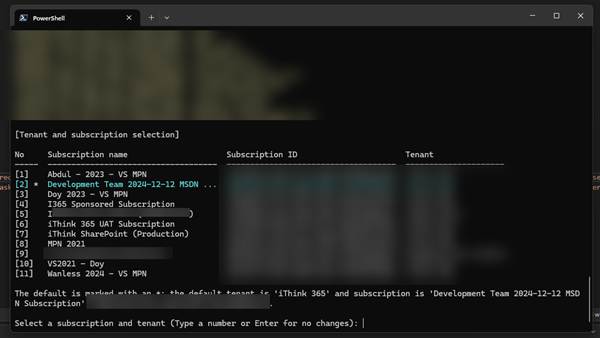
With your DevTunnel set, a local Azure Open AI deployment, and your code running in Visual Studio, your agent receives messages routed through the tunnel. This setup enables iterative development and debugging without deploying to Azure web apps.
Agent 365 Agent instance mentioned and responding in Teams chat (image credit: Simon Doy)
Quick Tips & Tricks
-
Install the Pre-release Version of a365 CLI — Use the pre-release tooling to avoid missing critical command options and enjoy the latest development features.
-
Use DevTunnels for Local Debugging — Bypass the complexity of cloud deployments during development by tunneling locally with DevTunnels, providing reliable Bot Framework message routing.
-
Pin Microsoft.Graph.Authentication Module to Version 2.33.0 — Avoid authentication errors by downgrading from 2.34.0 when using PowerShell commands in Agent setup.
-
Choose Supported Azure Regions — Deploy your Agent resources only to supported regions (e.g., swedencentral) to prevent provisioning errors, especially with messaging endpoints.
-
Keep Agent Short Names Under 30 Characters — Manifest validation strictly requires this, otherwise publishing fails and you must republish after fixes.
-
Manage Blueprints via Microsoft Teams Developer Portal — Since the CLI does not deduplicate blueprints, use the portal to identify and delete outdated duplicates to keep your environment tidy.
Conclusion
Agent 365 introduces a promising AI Agent platform deeply woven into the Microsoft 365 ecosystem, emphasizing governance, identity, and integration. While currently in its early days with evolving tooling and APIs, its core constructs of Blueprints, Instances, and secure identity management pave the way for sophisticated AI assistants embedded in enterprise workflows.
This journey of configuring and running your first Agent highlights critical challenges and solutions—especially integration complexities with Microsoft Graph, Azure regions, and local development proxies. As the platform matures, expect improved lifecycle management and richer pro-code and no-code experiences through Copilot Studio and Microsoft Foundry.
AI Agents are poised to become indispensable productivity partners. Agent 365 positions Microsoft uniquely to lead this wave, enabling developers and IT pros to craft specialized AI agents that enhance daily work in profoundly productive ways.
References
-
Delving into Agent 365 – Configuring and Building My First Agent | Simon Doy's Blog — Comprehensive walkthrough and personal experience configuring Agent 365.
-
Agent 365 Developer Documentation | Microsoft Learn — Official developer guides, CLI references, and SDK details.
-
Agent 365 Samples GitHub Repository — Example projects and Semantic Kernel integration references for Agent 365.
-
Microsoft Entra ID Custom Client App Registration — Instructions for setting up Entra ID applications for Agent 365.
-
Microsoft DevTunnels Documentation — Microsoft’s tunneling tool for secure local development.
-
Nullpointer’s Agent 365 Blog Series — Helpful community insights and troubleshooting tips on Agent 365 CLI.